
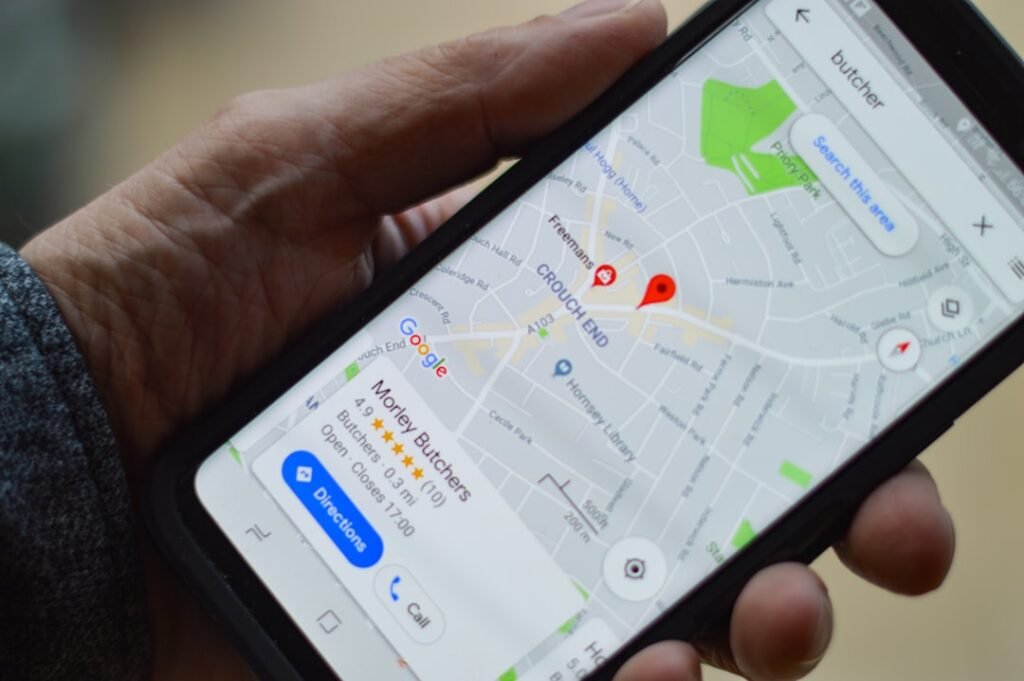
How to Display Google Maps Routes on Your Booking Form
Adding route details to your booking flow helps customers see exactly where their transfer goes, how long it takes, and what distance they cover. In this guide, you will learn how to display Google Maps routes on your booking form so clients can visualise the journey before they commit. This is particularly valuable for airport transfers, city rides, and tours, where precise routing reduces back and forth and improves trust.
By the end of this article you will know what to configure in Google Maps and WordPress, how to implement route visuals in your 5-step booking form, and practical tips to keep data accurate and up to date across devices.
Why you should display Google Maps routes on your booking form
Today customers expect to see not just a price but a clear picture of the journey. A live route display helps them plan, understand potential delays, and feel confident in the service they choose.
For transfer operators and chauffeur companies, showing routes integrates with your operational workflow, from driver assignment to calendar planning and invoicing. It also reduces the number of follow up questions about timings and distances.
- Increased transparency for customers about the route and duration
- Better planning for transfers by showing distance and time
- Quicker decision-making and reduced abandoned bookings
- Fewer phone and email queries to your operations team
- Improved driver allocation and ETA accuracy
Enhancing the booking flow with route visuals
Integrating route visuals into the booking flow supports the five step process offered by most WordPress booking plugins. As customers enter the Trip Details in the booking form, a dynamic map can plot the route, display distance and travel time, and update when a different service type is chosen.
This approach aligns with the modern expectations of private hire businesses and airport transfer operators. The live route display gives a tangible sense of the journey and helps staff plan the vehicle class and driver assignment more efficiently.
Practical steps to display Google Maps routes on your booking form
- Obtain a Google Maps Platform API key and enable Maps JavaScript API
- Set up a Google Maps Platform project and billing
- Restrict the API key to your domain or app
- Configure the booking form in WordPress (five step form) to capture pickup and drop-off addresses
- Enable live route display in your chosen booking plugin (for example, a popular WordPress booking solution) so the map shows distance and travel time during the Trip Details step
- Test the map on desktop and mobile, ensuring proper rendering on different devices
- Plan for round trips and multi-leg routes and how to present them in the form
Testing across devices ensures a consistent experience and reduces last minute support requests.
Benefits of showing routes in your booking form
Showing route data in the booking flow yields several practical advantages for a small transfer operator. Clients can visualise the journey, compare options, and book with confidence. From an operations standpoint, better route data supports scheduling and driver allocation.
- Improved conversion rates due to greater transparency
- Enhanced customer experience with clear journey information
- Better driver scheduling and more accurate ETAs
- Accurate travel time estimates aiding pricing and timetabling
- Reduced back-and-forth communications about routes and timings
This approach mirrors the capabilities found in modern WordPress booking solutions, which include live route display as part of the booking flow.
Common mistakes and how to avoid them
One common error is neglecting proper API key configuration. Without restricting the key, others could use it, leading to unexpected charges. Always restrict keys to your domains and set quotas to protect your project.
Another pitfall is failing to test the map on mobile or on slow connections. Always run tests across devices, ensure map tiles load, and provide a graceful fallback where maps are blocked by the browser or user settings.
Frequently Asked Questions
What do I need to display Google Maps routes on my booking form?
You will need a Google Maps Platform API key with Maps JavaScript API enabled, plus a WordPress booking plugin that supports route display. Follow the plugin documentation to integrate the map into the Trip Details step.
Do I need a Google Maps API key for route display?
Yes. You must enable the Maps JavaScript API in Google Cloud Console and apply restrictions to protect usage. Billing must be enabled for Maps services.
How does the route display show distance and travel time during booking?
The Maps API calculates the route in real time and the booking form updates with distance and estimated travel time as users enter origin and destination.
Is route display compatible with WordPress themes and plugins?
Most modern booking plugins for WordPress, including popular options, work with any theme via shortcodes. Ensure the plugin supports live route rendering in the form.
Can I use route display for round trips and multi-leg itineraries?
Yes. You can configure the booking flow to handle round trips and multi-leg journeys. The map will update to reflect each leg as users add them.
Conclusion: Displaying Google Maps routes on your booking form
Displaying Google Maps routes on your booking form helps clients understand the journey before they book, reducing uncertainty and support queries. With careful API setup and a capable WordPress booking plugin, you can provide live route visuals that align with your business workflow and improve operational efficiency.
In practice, mapping routes during the booking flow complements standard five step processes and supports accurate scheduling, driver allocation, and calendar sync. This approach is aligned with the capabilities of modern WordPress transport sites.